Introduction
The procedure detailed here is required to remove active network licences from the Sentinel server when any of the the following work is planned:
- Migration to a new Sentinel server
- Upgrading to a new version of the product before the current maintenance period has completed
- Redistributing the available network licences to different Sentinel servers.
This procedure ensures the correct number of licences are available within the organisation.
Workflow
The Licence Revocation process consists of the following 3 steps:-
- Creation of a password file and copy to the Sentinel Server installation path
- Revocation ticket creation for each product feature from the Sentinel server using WlmAdmin
- Email of these revocation tickets to Sciencesoft Support
To complete the revocation process, please complete steps below. Note this must be done on the server running the Sentinel Server software and be completed by the System Administrator.
Creation of the Password file
This file is created by the System Administrator and is used to ensure the correct security is applied when revoking network licences.
A revocation password file is generated on the system where WlmAdmin is executed. This file will be used for authenticating the revocation password. Note the following dll must be in the same directory as the WLMADMIN.exe to allow this to be completed:-
sntlpasswdgenutil.dll
This file can be downloaded from our FTP site or a dropbox link on request.
This dll file has to be placed in the same folder the WlmAdmin is stored in.
To generate the password file please follow these steps:-
- Open the WlmAdmin utility.
- Under the Tools menu, select Generate Revocation Password. The following dialog box appears:-
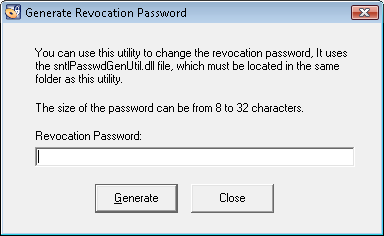
Please note that the option will not be available if sntlpasswdgenutil.dll is not present in the same directory as WlmAdmin. Please contact Sciencesoft Support if this file is not provided.
- Specify a password—consisting of 8 to 32 alpha-numeric characters—in Revocation Password. Make a note of this password
- Click Generate. A dialog box appears prompting you to save the sntlpassword.dat file. By default, it will be saved the following location:
- On Windows 2000, XP, and Server 2003: <OSdrive>:\Documents and Settings\XXX\My Documents\SafeNet Sentinel\Sentinel RMS Development Kit\Tools\
- On Windows 7: <OSdrive>:\Users\XXX\My Documents\SafeNet Sentinel\Sentinel RMS Development Kit\Tools\
- On Windows 8 and 10: <OSdrive>:\Users\XXX\Documents\SafeNet Sentinel\Sentinel RMS Development Kit\Tools\
- Click Save. A confirmation message appears.
- Copy the file you generated in step 5 to the license server's current directory:
<Osdrive>:\Program Files\Common Files\SafeNet Sentinel\Sentinel RMS License Manager\WinNT (for Windows Vista/XP/2003/2000).
or
<Osdrive>:\Program Files (x86)\Common Files\SafeNet Sentinel\Sentinel RMS License Manager\WinNT (for other operating systems)
The password file only requires to be created once to allow the revocation of the components from the Sentinel server.
Revoking a License
Once the password file has been copied to the correct location, the following steps will allow any feature to be revoked from the Sentinel server:
- Open the WlmAdmin utility.
- Expand the license servers in the left-hand pane of the main window.
- Select a license server from the list and verify the license server's version. It must be 8.0.x or higher.
- Double-click the selected server to view the feature(s).
- Right click on the feature to be revoked and select 'Revoke License' from the drop down menu:
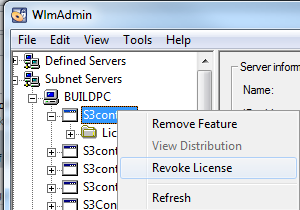
Note each feature must be revoked independently.
- Click Revoke License on the short-cut menu shown after right-clicking the feature. The Revoke License dialog box appears.
- Specify a value in Number of License to Revoke. Please note that it must not exceed the maximum licenses available. You may want to wait for revoking the licenses, till the required number of licenses are released (if being used).
- Specify the same revocation password you specified in step 3 above.
- Click the Revoke button.
- In the message shown click Yes to revoke the licenses. When the licenses are successfully revoked, a license revocation ticket (LRT) is displayed:-
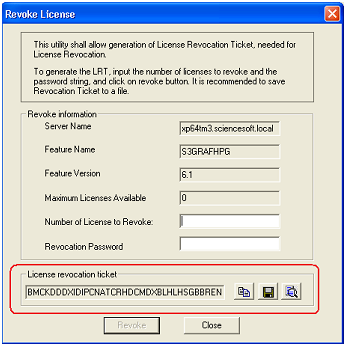
- To complete the revocation process, you must save the license revocation ticket details. The following options are available
 |
Copies the license revocation ticket to Clipboard. |
 |
Copies the license revocation ticket to a file. ( recommended) |
 |
Displays the license revocation ticket in a separate dialog box from which it can be copied as well. |
Note a separate file must be created for each licensed feature.
Revocation Ticket Verification
Send the newly created revocation ticket details to Sciencesoft Support for verification. Provided this is received before 5:00 pm UK time, the new licences can be issued on the same day.
Issues
The following alerts have been reported:
Error 109:
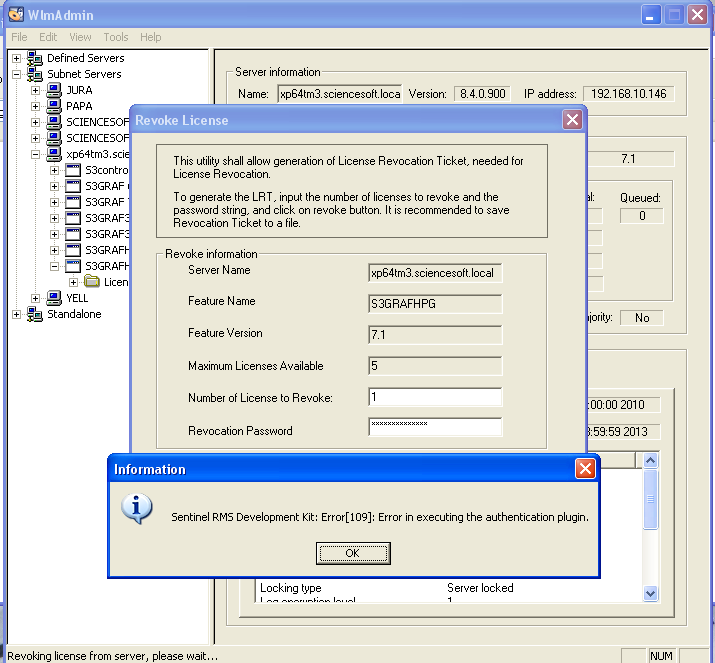
This is caused by the sntlpassword.dat file not being in the correct location. In this case, the file should be in the following location for a workstation running a 64 bit operating system:
<os drive>:\Program Files (x86)\Common Files\SafeNet Sentinel\Sentinel RMS License Manager\WinNT
Error 105:
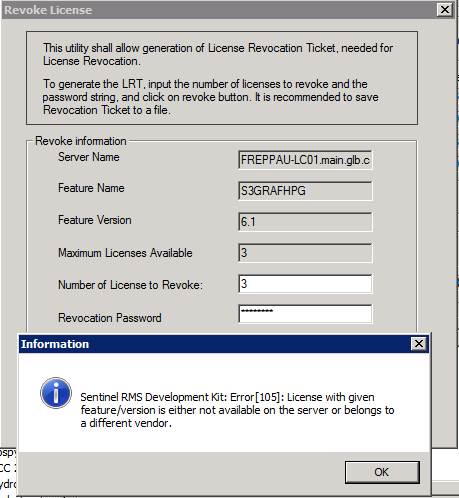
This is caused by the wrong version of WlmAdmin and sntlpassword being used. Upgrading to the version 8.6 versions resolve this issue.
Error 108:
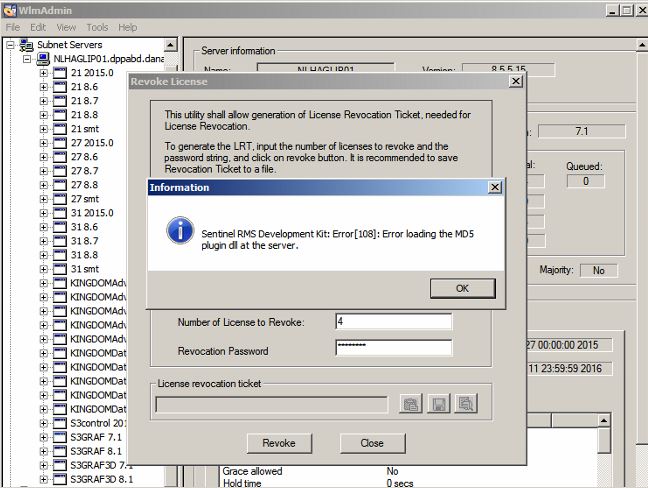
This is caused by the MD5CHAP.dll not being in the 'Common files' folder for the Sentinel Server. Note this is usually:
C:\Program Files (x86)\Common Files\SafeNet Sentinel\Sentinel RMS License Manager\WinNT
But may be different depending on the source of the Sentinel Server software. The correct location can be identified from the 'Sentinel RMS Licence Manager' service path to executable:
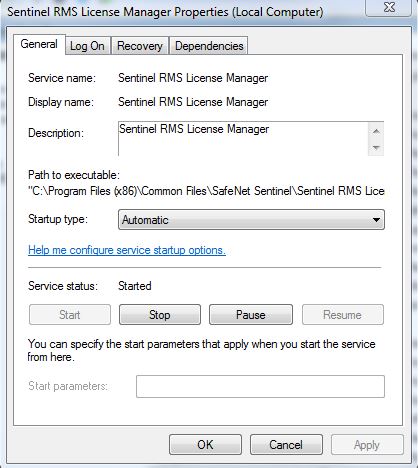
When copied into this location, the MD5CHAP.dll resolved this issue. If there are any issues identifying this file, please contact Sciencesoft Support and the correct version will be provided.