Introduction
This workflow makes use of the WLSGRMGR application, supplied by Sentinel, to generate a file which is saved to the Sentinel Server installation path. Once installed and configured, this will restrict a subset of the available licences to particular groups. Each group can contain usernames, ip addresses or host names.
High level workflow
This workflow involves the following steps:
- Creation of a text file called lsreserv which is placed in the Sentinel server installation path.
- Creation of an Environment Variable called LSRESERV which maps to the lsreserv file path location.
- Restarting the Sentinel RMS License Manager service to pick up these changes.
Obviously the values for the hostname, IP address or workstation names that can be included in the lsreserv file are not know. However a sample file containing a suggested format can be downloaded from this article if required.
The WLSGRMGR application is attached to this article and can be downloaded. Alternatively it can be provided via an FTP or Dropbox site.
This application does not require any installation. It can be launched in a similar manner to WlmAdmin
LSRESERV file creation
To create the lsreserv file, please complete the following steps:
- Save the WlsGrmgr executable attached to this article to a folder on your Sentinel Server.
- Launch WlsGrmgr.exe, by double clicking on it, to display the following:
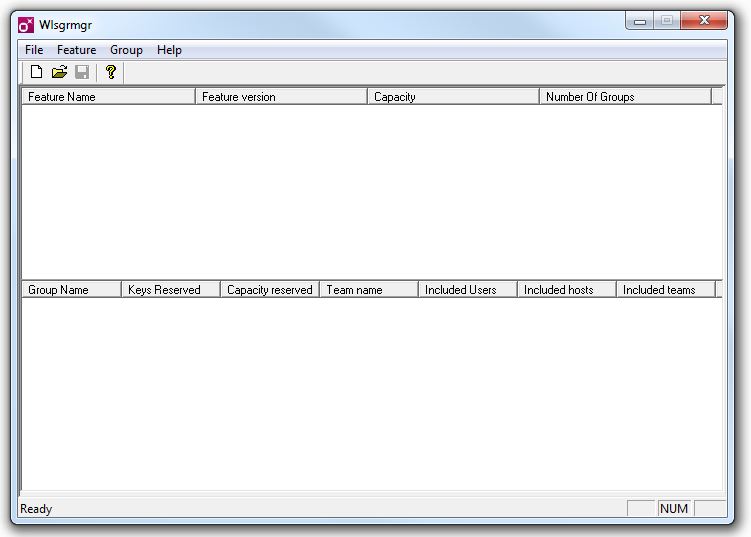
- Click on File- New to start a new file.
- Click on Feature -> Add to launch the 'Add License Reservation Wizard':
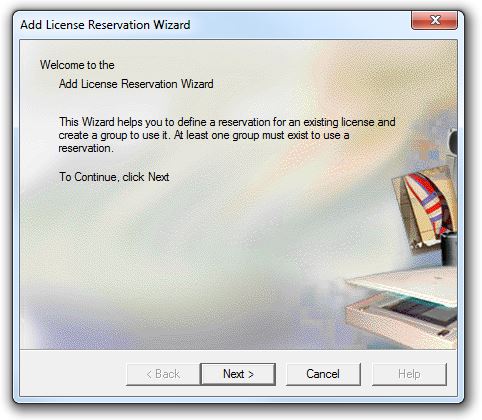
- Click on Next to display the 'Feature Version Capacity' dialog.
- Enter the Feature Name, Feature version and Capacity:
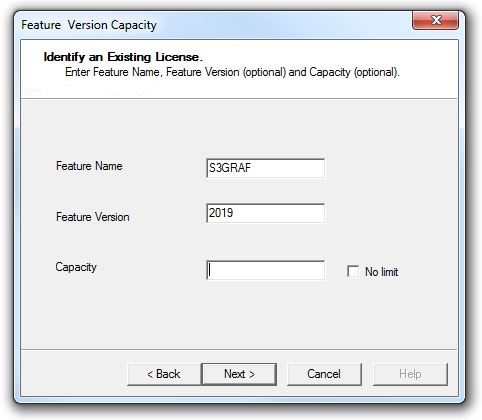
Note: Capacity is optional, but if entered should match the maximum number of available licences
- Click on Next to display the ‘Add a group..' dialog:
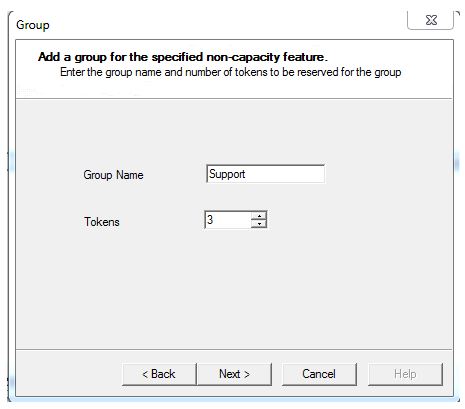
- Enter a Group Name, adjust the number of tokens assigned to this group. Then click on Next to display the ‘Add members to the group’ dialog.
- Click on Add and enter the name of the member:
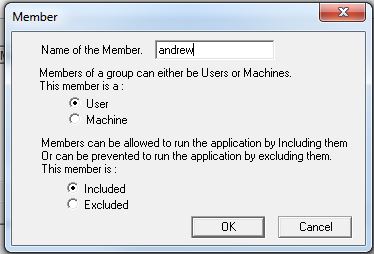
Note this can be the user login name or workstation.
Selecting the ‘Excluded’ radio button will stop this user from accessing the number of tokens assigned to this group.
- Click on OK to close this dialog to display the Wlsgrmgr application :
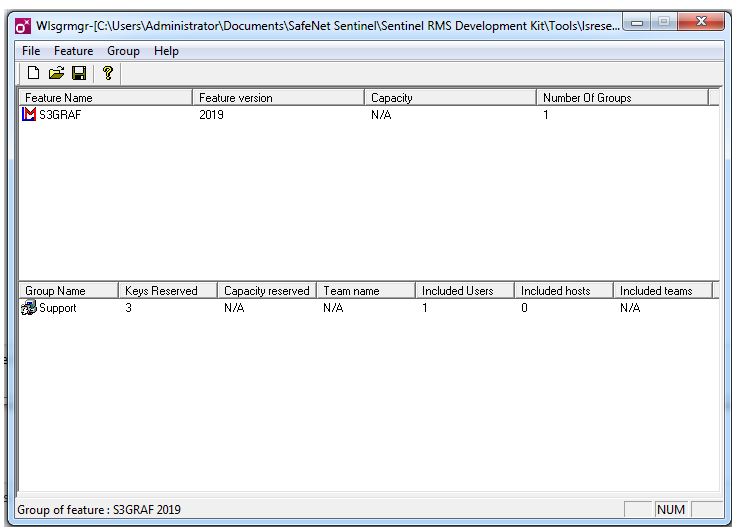
- Further groups can be created:
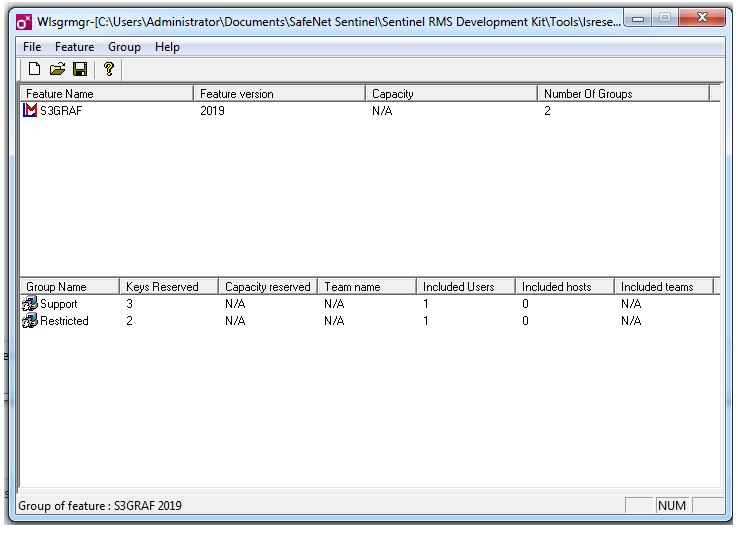
- Save these details as “lsreserv”.
Note no file suffix. This is a text file that can be edited in any text editor for example Notepad.
- Copy this file to the following location on the Sentinel RMS server:
“RootDir: \Program Files (x86)\Common Files\SafeNet Sentinel\Sentinel RMS License Manager\WinNT”.
The lsreserv file can be edited using Notepad in the future if required.
Sample lsreserv format
The lsreserv file is a text file that can be edited in any text editor. Each line indicates the following
- The first line indicates the version of Sentinel RMS Development kit used to create the file.
- All subsequent lines indicate the features, version, groups and member details. For example: <feature name>,<feature version>,<group>,<group tokens>,<group members>
The attached file has the following example:
# Created By Sentinel RMS Development Kit Group Manager ::: 9.3.0.0041 ::: 1.0
S3GRAF,2019:Support:3:Andrew
S3GRAF,2019:Restricted:2:tsupport
Note placing an exclamation mark in front of the group or name indicates this is an excluded item.
Environment Variable settings
The LSRESERV Environment Variable should be configured in the System properties - Advanced tab to have the Variable value:
C:\Program Files (x86)\Common Files\SafeNet Sentinel\Sentinel RMS License Manager\WinNT\lsreserv
For example, when viewed from a command prompt using the 'set lsreserv' command:

Sentinel RMS service
After the file is saved, and the Environment Variable has been configured, restart the ‘Sentinel RMS License Manager’ service using the Services.msc snap in on the operating system:
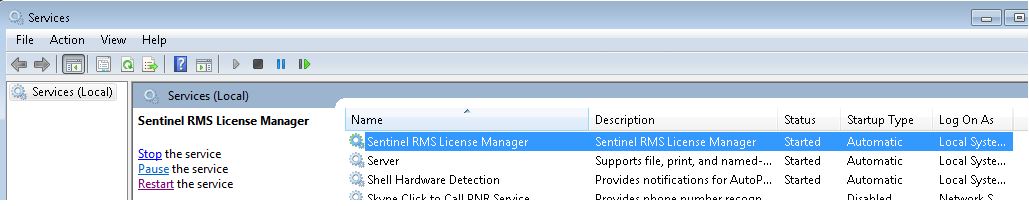
Once restarted, the restrictions should then be enforced by the Sentinel RMS server.
Results
Once implemented, the sample lsreserv file will apply the following:
- Restrict Andrew to three instance of S3GRAF 2019
- Restrict tsupport to two instances of S3GRAF 2019
However if Andrew opens an additional (4th) instance of the application, the following dialog will display:
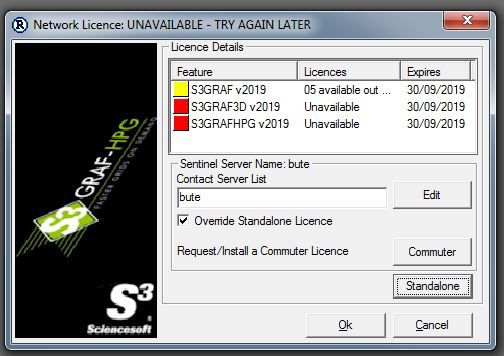
Note in this instance 5 network licences of S3GRAF 2019 are installed on the Sentinel server.
Issues
Restrictions not applied: Ensure all available licences are restricted. For example if there are 3 licences of S3GRAF 8.1 on the Sentinel server and only 1 is restricted to a particular user, the other 2 can still be accessed since they are not assigned. in this case a further group is required to assign these or restrict these.
A Webex can be scheduled to implement this workflow if required.