Network Licence Installation
To use a Sentinel server to license Sciencesoft applications the appropriate licence files must be installed on the server. Network licences are installed by using the following procedure:
- Save the licence file(s) that have been sent to a location that can be accessed by the Sentinel server.
- Log onto the Sentinel server with an account that has administrative access.
- Run WLMAdmin.exe.
- Expand the Subnet servers tree.
- Right click on the appropriate server.
- Choose Add Feature/From a File/To Server and it's File.
- Browse to the saved location of the licence file(s), highlight this:
- Click on Open to install this on the Sentinel Server:
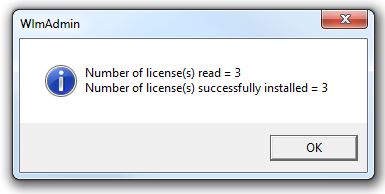
- Click on Ok to close this dialog and view the installed components in the treeview:
If it is a valid licence for the server, the feature(s) will appear under the server name in the treeview.
Licence Allocation
The Wlmadmin application can be used to display the clients currently utilizing network licences. This can be displayed by expanding the Sentinel server in the ‘Subnet Servers’ list of the Treeview. Then expanding the component under investigation. For example, in the image below, it can be seen that 1 of the 2 network licences of ‘S3GRAF 2022’ are being utilized on the Sentinel server running on 'Spike' by a workstation called 'Spike':
Highlighting each user will display the workstation that this licence is being used on: