Introduction
To allow communication between our applications and the Sentinel Server, UDP port 5093 requires to be open on both the client and server. Although this is a standard port, it may be blocked in your infrastructure for IT security reasons. However this is deemed low risk and must be enabled to allow utilisation of the network licences.
Issues
The symptoms of this issue are best seen when S3control or S3GRAF are launched. the licence dialog remains blank for a few seconds before being populated with No Licence detected alerts.
For example S3control will display:
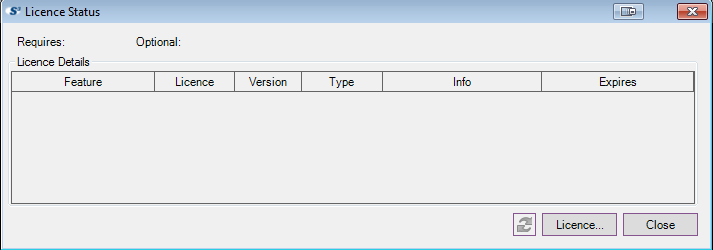
and after a few seconds:
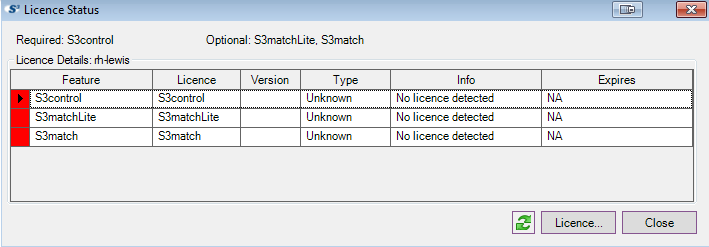
While S3GRAF displays the following:
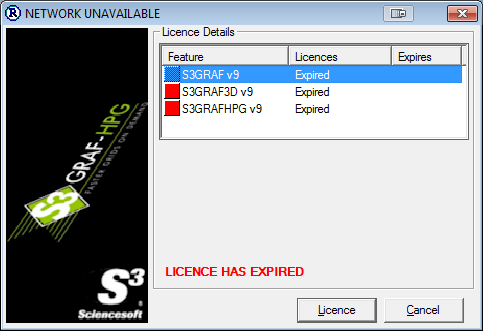
Firewall Rules Setup
The following steps can be followed to create both inbound and outbound rules on the firewall.
- Launch Control Panel
- Open the Windows Firewall:
- Select the Advanced Settings to display the Windows Firewall with Advanced Security settings:
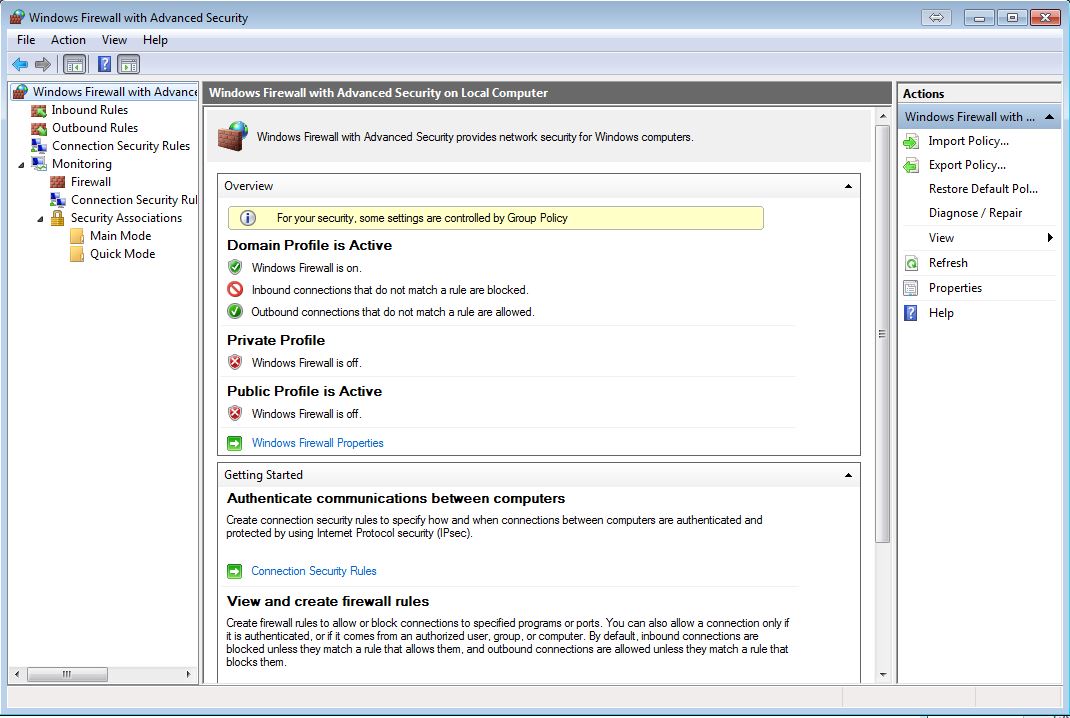
- Select 'Inbound Rules' to display the current setup rules:
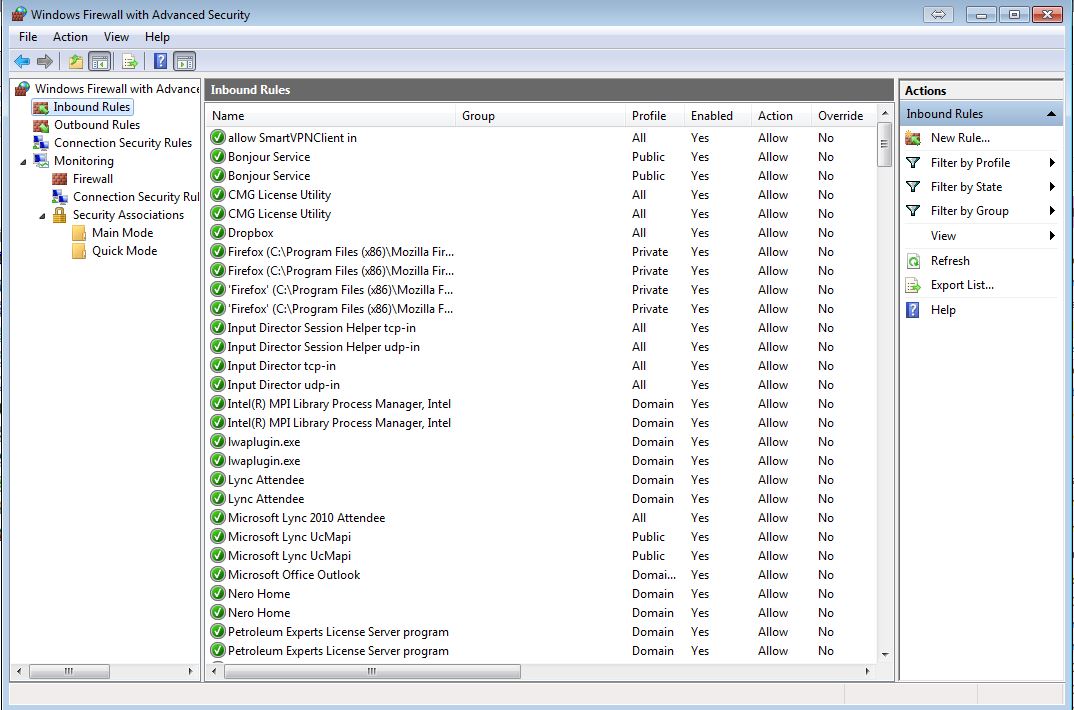
- Click on 'New Rule' from the right Actions pane:
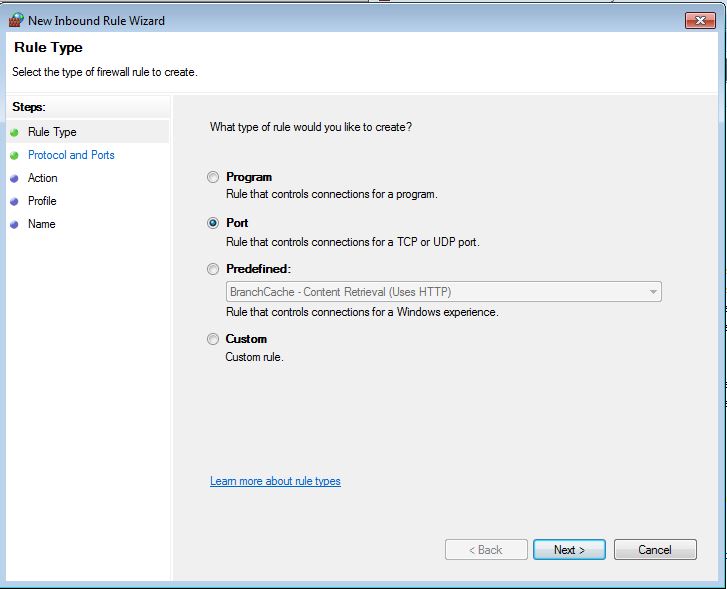
- Select Port and click on Next:
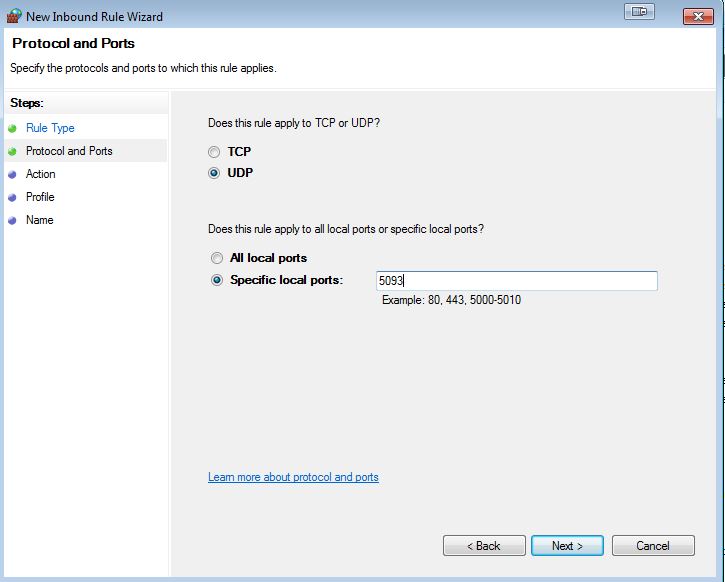
- Select UDP and enter 5093 into the 'Specific local Ports' field and click on next:
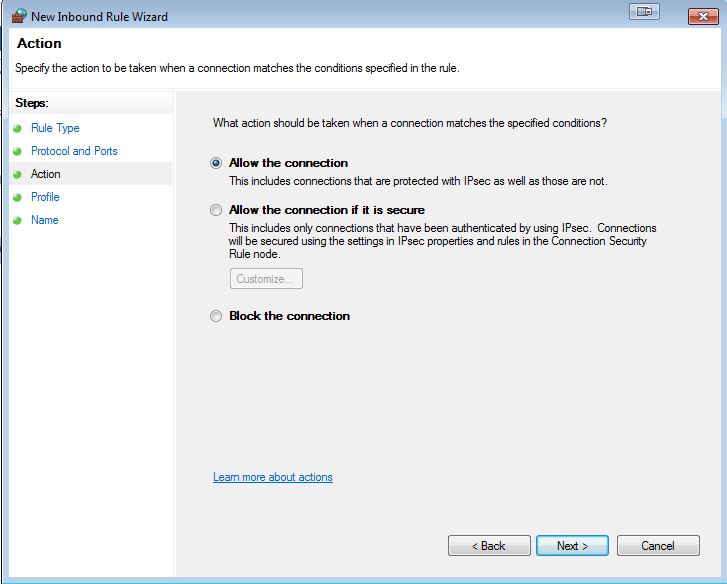
- Leave the option to 'Allow the connection' and click on next:
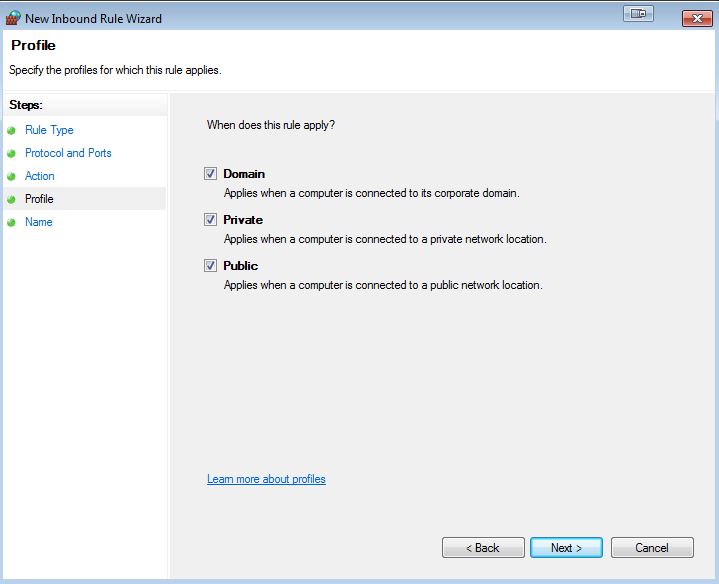
- Leave the options and click on next:
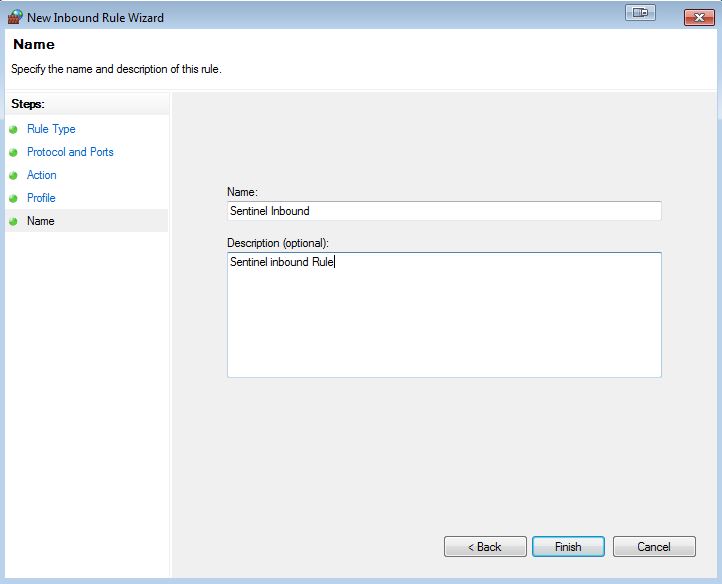
- Enter a suitable name. In this case 'Sentinel Inbound' and provide a short description then click on Finish:
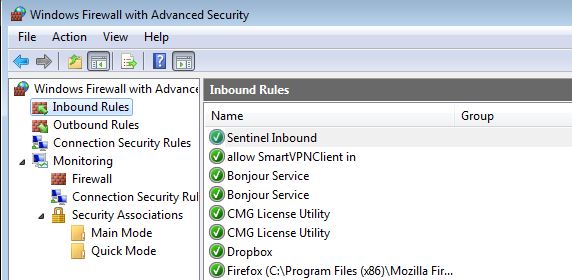
The new Inbound Rule will be added to the list
Repeat this for the Outbound Rules: