Introduction
When new major versions of our products are released, the existing network licences hosted on the Sentinel server may require to be upgraded, provided maintenance is valid, to allow the new versions to be utilised. This ensures correct eligibility of software versions.
The following upgrade paths are available:
- Revocation of the existing network licences, as detailed in the Revocation Procedure, followed by installation of new network licences provided by Sciencesoft Support
- Installation of an upgrade file onto the Sentinel server installation path that will automatically upgrade a number or all of the available valid licences.
Note that previous product versions can utilise the most recent network licence versions.
Further details on each procedure are documented below.
Revocation Procedure
The Revocation Procedure detailed in the Support portal, can be used to remove all or a subset of the current valid network licences from the Sentinel Server. This requires the generation of Revocation tickets which are then provided to Sciencesoft Support for validation before replacement licence files are issued.
In this instance, the recommended upgrade plan is the following:
- Sciencesoft Support are notified of an upgrade request and provide temporary network licences of the latest product version to be installed on the current Sentinel server. Valid for say 2 weeks, however this can be longer if required.
- The previous product version licences are revoked and the revocation tickets are provided to Sciencesoft Support.
- Once validated, permanent network licences of the latest product version are issued. When installed, these will over write the currently installed temporary licence files.
Note these will be usually be valid until the end of the current maintenance period.
This procedure removes the current installed licence files and requires new licence files to be generated.
Upgrade File Procedure
In this procedure, an upgrade file is generated that can be placed in the installation path for the Sentinel Server. Once the Sentinel RMS service is restarted, this file is read by the Sentinel Server and effectively upgrades the existing installed licence file to the latest version.
The current licence versions can be viewed using the WlmAdmin application:
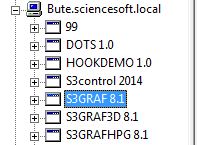
In this instance the recommended upgrade plan is the following:
- Sciencesoft Support are notified of an upgrade request.
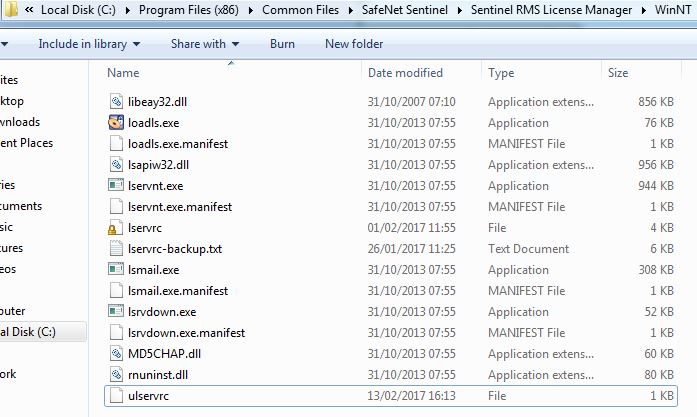
- An upgrade licence file is generated and provided. The file is called ulservrc and cannot have the name changed.
- This file is placed in the following location of the Sentinel Server:
C:\Program Files\Common Files\SafeNet Sentinel\Sentinel RMS License Manager\WinNT
For example:
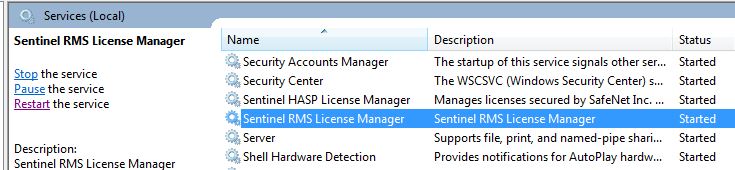
- Launch the services.msc, highlight the Sentinel RMS Licence Manager service and select restart:
- Refresh the Sentinel Server view on WlmAdmin to view the upgrade:
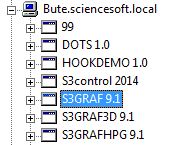
This procedure upgrades the currently installed licence files to the latest version, but does not change either the number or expiry date. Obviously at the expiry date, replacement network licences are provided as per the maintenance agreement.