Sentinel Server Historic Usage Monitoring
The WLMADMIN application can be used to view current network licence allocations, Safenet have provided further monitoring tools that can be configured to provide historic licence usage. This allows analysis of licence usage between specific dates or all available dates. The following sections provide details on the configuration of the Usage log files. This can then be imported into an Access database for further analysis. Details on this will be provided in a separate document.
Usage Log Creation
The usage log is a comma Separated file (.csv) that lists all network license allocations. To configure the creation of this file on the Sentinel Server, the following methods are available:
- Environment Variable: When configured, this will record all details from the Sentinel server to the usagelog file.
- Service Start parameter: When configured, this will record all details since the Sentinel RMS Service Manager was started. However it must be re-configured when the Sentinel Server is restarted.
Further details on configuring each method are detailed below. Note only one method should be deployed.
Environment Variable
This ensures the usage logs are logged constantly from the time the ‘Sentinel RMS’ service is started.
Set the following System Environment Variable on the server running the Sentinel RMS software:
LSERVOPTS
Use the following Variable Value:
-l c:\temp\USAGELOG2.CSV
-l Specifies the name and location of the license server’s usage log file, which enables usage logging. By default, usage logging is disabled.
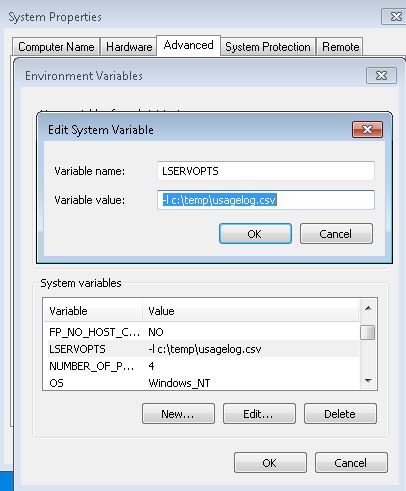
Click on OK then restart the license server service:
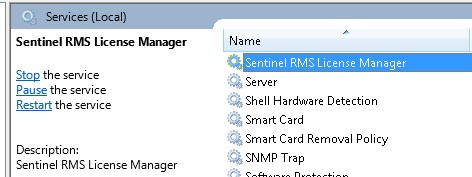
This will create the USAGELOG.CSV in the c:\temp folder. (note Another folder can be specified if required):
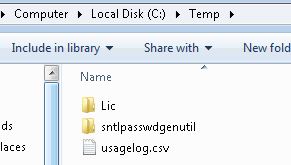
Once generated this file is updated as new licences are accessed.
Service Start Parameter
The following parameters can be placed in the Sentinel RMS Licence Manager Service.
On a supported Windows system, use the following steps:
- From the Start menu, point to Settings > Control Panel.
- Double-click Administrative Tools.
- Double-click Services.
- In the Services window, locate Sentinel RMS Development Kit License Manager and double-click it.
Stop the license server service, if running already:
Right click on this service and select Properties.
In the Start parameters field, enter the following:
-l <path>\<licenceusage.csv>
Where:
<path> refers to folder path to save the Usage log file to
<licenceusage.csv> refers to the Usage file name.
For example:
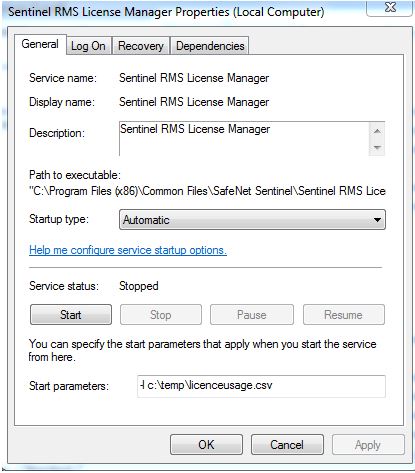
Click on Apply then Start the license server after providing the settings by clicking on the START button in the Service dialog box above. This will apply the ‘Start Parameters’ to this instance of the Service.
Note restarting this service will require the ‘Start Parameters’ to be entered again.
Usage Log Analysis
The usagelog.csv file can then be imported into the RMS Reporting Utility as supplied by Safenet. This database consists of one table and a number of SQL queries that are run each time a report is requested. The reports listed have been provided by Safenet. However the database design has been enhanced slightly by Sciencesoft to improve the ease of importing the usage log file. If further reports are required, these can be generated using SQL as required.
Details on importing the Usage Log CSV file into the Sentinel RMS reporting database and available reports, can be found in the following Support Article:
Sentinel Server Historic Usage Analysis
if you have any questions on this, please contact Sciencesoft Support.